
How to Convert Between EPUB and PDF: The Complete Mobile-First Guide
Understand when to convert, which direction preserves quality, and how to read or repair the result on your iPhone—without installing desktop software.
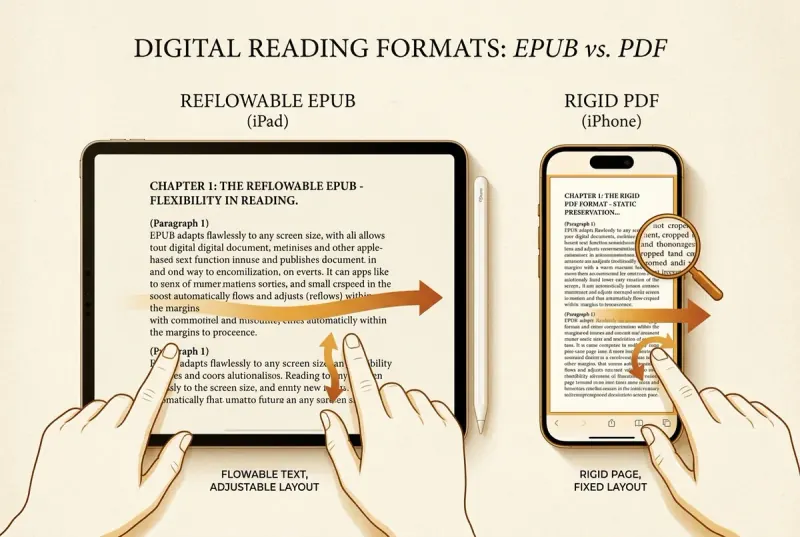
To convert PDF to EPUB, use Calibre (desktop) or upload to Google Docs and download as EPUB. To convert EPUB to PDF, open the book in Apple Books and use Print → Save as PDF. Both directions are free—but neither is lossless. PDF to EPUB is a reconstruction: the converter must guess paragraph breaks and heading levels from a format that never encoded them, so the output almost always needs cleanup. EPUB to PDF is a reduction: you freeze reflowable text into rigid A4 pages, losing dark mode, font scaling, and TTS. This guide walks through the best tools for each direction, explains what breaks during conversion and why, and shows how to repair the result on your iPhone so it actually reads well on mobile.
Essential Facts & Reader Takeaways
- ✓Quick answer: Calibre (free, desktop) handles both directions with the most control. For mobile-only, Google Docs converts PDF → EPUB and Apple Books converts EPUB → PDF.
- ✓PDF to EPUB quality depends on the PDF type: text-layer PDFs (from Word/LaTeX) convert well; scanned image PDFs require OCR and produce messier results.
- ✓EPUB to PDF is lossy by design: you trade reflowable text, dark mode, font scaling, and TTS for a universally printable, fixed-layout document.
- ✓Every converter produces imperfect output—expect wrong metadata, missing covers, broken CSS, and flat navigation. Post-conversion cleanup is a separate, essential step.
- ✓EpubTidy is not a converter—it is the tool that makes the converted EPUB actually pleasant to read: fix metadata, replace the cover, clean CSS, rebuild navigation, all on iPhone.
Why People Convert Between EPUB and PDF
Different formats solve different problems
You have a PDF textbook that is impossible to read on your phone without pinching and zooming on every page. Or you have an EPUB novel that your professor's submission portal will not accept. Both are real problems—and conversion is the answer. But the two directions are very different operations with very different trade-offs.
**PDF to EPUB** unlocks a rigid document for comfortable mobile reading. The text becomes reflowable (fits any screen width), gains dark mode and font scaling, and becomes compatible with AI text-to-speech. This is the direction most people search for, and the one that produces the most value—but also the most conversion artifacts.
**EPUB to PDF** locks a fluid document into printable pages. You gain universal compatibility (every device opens PDF) and exact visual fidelity, but you lose everything that makes EPUB great on phones: reflowable text, custom fonts, OLED dark mode, and seamless narration.
EPUB to PDF: What You Gain and What You Lose
A one-way compression of a fluid format into a rigid one
Converting an EPUB to PDF is conceptually straightforward: a rendering engine lays out the reflowable text onto fixed-size pages (usually A4 or Letter) and outputs a static document. The result is universally openable—every computer, phone, and tablet can display a PDF without special software.
However, the conversion is lossy in ways that matter for readers. The PDF output loses reflowable text (no more automatic line wrapping on small screens), dark mode support (the background is now a baked-in white canvas), font scaling (zooming in requires horizontal scrolling), and semantic text streaming for TTS (the audio engine must guess reading order from fixed coordinates).
**Best free tools for EPUB → PDF:** Calibre (desktop, open source), Pandoc (command-line, powerful for technical documents), and online converters like CloudConvert or Zamzar (browser-based, but your file is uploaded to a third-party server). On iPhone, you can open an EPUB in Apple Books and use the iOS Print dialog to 'Save as PDF'—though this produces a basic rendering without advanced typography.
PDF to EPUB: Reconstructing Structure from a Flat Page
The harder direction—and where most problems begin
Converting PDF to EPUB is significantly more difficult because PDF does not encode document structure. A PDF stores individual characters at absolute positions on a page—it does not know where a paragraph ends, where a heading begins, or what reading order to follow across columns. The converter must reverse-engineer this structure.
**Text-layer PDFs** (exported from Word, LaTeX, or InDesign) convert reasonably well because the character data is already machine-readable. Tools like Calibre, Adobe Acrobat Pro, and ABBYY FineReader can extract text, infer paragraphs, and produce a usable EPUB. The result still needs cleanup—merged paragraphs, missing headings, orphaned page numbers, and broken hyphenation are common artifacts.
**Scanned or image-based PDFs** require OCR (Optical Character Recognition) before any conversion. Google Drive, Adobe Acrobat, and ABBYY FineReader handle OCR, but the output quality depends heavily on scan resolution, font clarity, and page layout complexity. Multi-column academic papers and textbooks with sidebars are particularly problematic.
**Best free tools for PDF → EPUB:** Calibre (desktop, the gold standard for ebook conversion), Google Docs (upload the PDF, then download as EPUB—surprisingly effective for simple documents), and Pandoc (best for structured technical documents). Online converters work for quick jobs but upload your file to external servers.
Fixing Converted EPUBs on Your iPhone
Every converter produces imperfect output—here's how to clean it up
No matter which tool you use, converted EPUBs almost always arrive with problems. The metadata is wrong (title says 'Untitled', author is blank or set to 'Calibre'). The cover is missing or is a low-resolution screenshot of the first page. The CSS contains hardcoded font sizes, forced white backgrounds, or broken margins. The table of contents is flat or absent entirely.
This is where EpubTidy completes the pipeline. Import the converted EPUB on your iPhone, and you can immediately: **edit the title, author, series, and language metadata**; **replace the cover** with a high-resolution image from your photo library; **clean locked CSS** to restore dark mode and font scaling; **rebuild the navigation document** from heading structure; and **validate the EPUB** against W3C standards before sending it to Apple Books, Kindle, or any other reader.
The key insight is that **conversion and cleanup are separate steps**, and EpubTidy is purpose-built for the second step. Use the best available converter for the heavy lifting, then use EpubTidy to make the result actually pleasant to read on mobile.
Convert on iPhone: What's Possible Without a Computer
Mobile-only workflows for readers without desktop access
If you do not have access to a computer, you can still convert and clean up files entirely on your iPhone. For **PDF to EPUB on iPhone**, upload the PDF to Google Docs (via the Google Docs iOS app), then download it as an EPUB from the File menu. Alternatively, use a reputable iOS app like 'PDF to EPUB Converter' from the App Store. The output quality varies, but simple text-heavy PDFs convert well.
For **EPUB to PDF on iPhone**, open the EPUB in Apple Books, tap the share icon, select Print, then pinch outward on the print preview to generate a PDF. You can also use the iOS Files app's built-in 'Create PDF' action on some document types.
After either conversion, open the result in EpubTidy (if the output is EPUB) to fix whatever the converter broke. The entire workflow—convert, repair, read—happens on one device without touching a laptop.
EpubTidy vs. Browser-based conversion websites
| Feature / Capability | EpubTidy (iOS) | Browser-based conversion websites |
|---|---|---|
| Privacy Sensitive manuscripts, academic papers, and personal documents stay private. | ✓ EpubTidy processes files locally on your iPhone—nothing uploaded | Your book is uploaded to a third-party server for conversion |
| Post-conversion cleanup Most converters produce EPUBs that need structural fixes before they read well. | ✓ Integrated metadata, cover, CSS, and navigation repair | Download the raw output and hope for the best |
| Format conversion engine Use a dedicated converter first, then bring the EPUB into EpubTidy. | ✓ Not a converter—designed for reading, editing, and repairing EPUBs | Performs the actual format transformation |
| Mobile workflow One device from conversion output to polished reading experience. | ✓ Full repair, reading, and TTS on iPhone | Conversion only; must open the result elsewhere |
Frequently Asked Questions About This Topic
What is the best free tool to convert PDF to EPUB?▼
Calibre (desktop, open source) is the most powerful free option. For a mobile-only workflow, upload the PDF to Google Docs and download it as EPUB, then open the result in EpubTidy on iPhone to repair metadata, covers, and formatting.
Can I convert EPUB to PDF on my iPhone without an app?▼
Yes. Open the EPUB in Apple Books, tap Share, select Print, then pinch outward on the print preview to save it as a PDF. The result is a basic rendering—advanced typography and interactive features may not transfer.
Why does my converted EPUB look broken?▼
PDF does not encode paragraph structure, headings, or reading order. The converter must guess, and it often gets margins, font sizes, and page breaks wrong. Open the converted EPUB in EpubTidy to clean locked CSS, fix metadata, replace the cover, and rebuild navigation.
Does EpubTidy convert PDF to EPUB?▼
No. EpubTidy is an EPUB reader, editor, and repair tool—not a format converter. Use a dedicated converter first, then bring the output EPUB into EpubTidy for cleanup and reading.
Is it better to read a PDF or convert it to EPUB on my phone?▼
For text-heavy documents like novels, textbooks, and articles, converting to EPUB provides a dramatically better mobile reading experience: reflowable text, dark mode, font scaling, and AI text-to-speech. Keep the original PDF only if you need exact page layout preservation for printing or annotation.
Can I convert PDF to EPUB on my iPhone?▼
Yes. Upload the PDF to Google Docs and download as EPUB, or use a PDF-to-EPUB converter app from the App Store. Then import the resulting EPUB into EpubTidy to fix any conversion artifacts before reading.
Related Guides & Topics
Fix the EPUB problem you came here for.
Use EpubTidy on iPhone or iPad to edit metadata, replace covers, clean formatting, and export a corrected EPUB. Reading and offline read aloud are included.