
How to Change an EPUB Cover Image: The Definitive Guide for Every Device
Replace missing, blurry, or wrong book covers inside the EPUB file itself—so the fix travels with the book to every reader app, every device, every time.
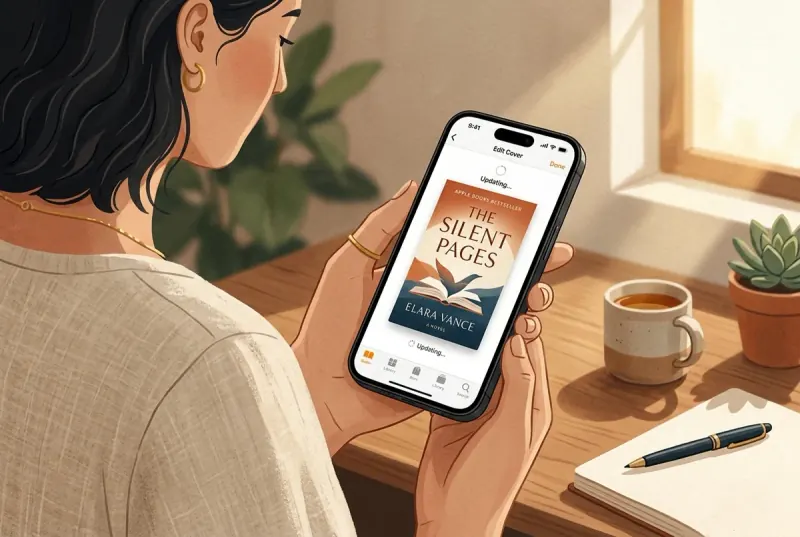
On iPhone, open the EPUB in EpubTidy, tap the cover, pick a new image from your photo library, and save—the fix is embedded inside the EPUB file in under 10 seconds. On desktop, right-click the book in Calibre → Edit metadata → Change cover. Both methods update the image and the internal metadata together, so the correct cover travels with the book to every reading app and device. If you want to understand why covers break in the first place—blurry thumbnails, missing artwork, wrong book on the shelf—this guide explains the three places a cover lives inside an EPUB package and how to diagnose each failure mode.
Essential Facts & Reader Takeaways
- ✓Quickest fix: EpubTidy on iPhone (tap cover → pick photo → save) or Calibre on desktop (Edit metadata → Change cover). Both update the image and internal references together.
- ✓Why covers break: the EPUB has three internal references (image file, OPF manifest, metadata declaration) that must all agree. If any one is missing or mismatched, the cover disappears.
- ✓Most 'missing' covers are actually metadata problems—the image exists inside the file but no app can find it because the OPF does not point to it.
- ✓Use at least 1400 × 2100 px (2:3 ratio) for sharp Retina display and compatibility with Kindle/Kobo submission requirements.
- ✓The fixed cover is permanently embedded inside the EPUB—it works in Apple Books, Kindle, Kobo, and any other reader without a separate cover database.
How EPUB Covers Actually Work Inside the Package
Understanding this saves you from fixing the same cover twice
You can fix a cover in 10 seconds—but if you do not understand where the cover actually lives inside the EPUB, the same problem will come back when you transfer the book to another app or device. Knowing the three internal references gives you the power to diagnose any cover failure permanently.
**1. The image file itself.** A JPEG or PNG stored inside the EPUB archive (typically `images/cover.jpg`). This is the actual pixel data. If this file is missing or too small (200 × 300 px), the cover will be absent or blurry on every device.
**2. The OPF manifest entry.** The `<manifest>` section of `content.opf` must list the image with a `properties="cover-image"` attribute (EPUB 3) or a `<meta name="cover" content="cover-image-id"/>` element (EPUB 2). This is the most common failure point—the image exists but no app can find it because this reference is missing.
**3. The cover XHTML page (optional but common).** Many EPUBs include a dedicated `cover.xhtml` page that wraps the cover image in an `<img>` tag. This page is listed first in the `<spine>` so the cover displays when the book is opened. Some readers use this page; others read directly from the manifest declaration.
When any of these three layers is missing, mismatched, or points to a nonexistent file, the cover breaks. The most common failure mode is a valid image file that is not declared in the manifest—the image exists inside the ZIP but no reading app can find it.
Change an EPUB Cover on iPhone with EpubTidy
The fastest path from broken cover to beautiful library shelf
Open the EPUB in EpubTidy. The current cover (or a placeholder indicating no cover was found) is displayed prominently. Tap the cover image, and EpubTidy presents the iPhone photo picker. Select any image—a high-resolution cover you saved from Goodreads, a photo you took of a physical book, or artwork you created.
EpubTidy automatically scales and embeds the image inside the EPUB archive, updates the OPF manifest entry, sets the correct `properties="cover-image"` declaration, and—if the EPUB uses a cover XHTML page—updates the `<img>` reference. The entire operation takes under 10 seconds.
After saving, the fixed cover is permanently embedded inside the EPUB file. When you export the book to Apple Books, Send to Kindle, or share it with a friend, the cover travels with the file. There is no separate 'cover database' to lose or sync—the EPUB itself is the single source of truth.
Change an EPUB Cover on Desktop with Calibre or Sigil
Batch operations and advanced editing for large libraries
**Calibre** (free, cross-platform): Right-click a book in your Calibre library → Edit metadata → Download cover (to fetch from online databases) or click the cover image to browse for a local file. Calibre updates the internal EPUB metadata when you save. For batch operations, select multiple books, right-click, and use 'Download metadata and covers' to pull artwork from Amazon, Google, and Open Library simultaneously.
**Sigil** (free, cross-platform EPUB editor): Open the EPUB, navigate to the `Images` folder in the Book Browser panel, right-click and 'Add existing files' to import your cover image. Then open `content.opf` in the Code View tab and ensure the manifest references the new image with `properties="cover-image"`. Sigil gives you full control but requires understanding the OPF structure.
**Online editors** (browser-based): Several websites offer EPUB cover replacement by uploading the file, selecting a new image, and downloading the modified EPUB. These are convenient for quick fixes but require uploading your book to a third-party server—a privacy concern for unpublished manuscripts or personal documents.
Common Cover Problems and How to Diagnose Them
From blurry thumbnails to phantom covers
**Blurry cover on the shelf:** The embedded image is too small—often 200 × 300 pixels, which looked acceptable on early e-ink screens but appears pixelated on modern Retina displays. Replace it with a 1400 × 2100 pixel (or larger) image.
**Cover shows in one app but not another:** The EPUB uses an EPUB 2 `<meta name="cover">` declaration that older apps understand, but lacks the EPUB 3 `properties="cover-image"` manifest attribute that newer apps look for (or vice versa). EpubTidy writes both declarations to maximize compatibility.
**Wrong cover / someone else's book:** This happens when a bulk conversion tool assigns cover art from an incorrect metadata match, or when two books share the same internal cover filename after a copy-paste packaging error. Replace the image and verify the metadata title and author match.
**No cover at all (generic grey rectangle):** The EPUB either contains no image file, or contains one that is not declared in the OPF. In EpubTidy, tapping the placeholder immediately opens the photo picker so you can inject a cover from scratch.
EpubTidy vs. Desktop EPUB cover editors (Calibre / Sigil)
| Feature / Capability | EpubTidy (iOS) | Desktop EPUB cover editors (Calibre / Sigil) |
|---|---|---|
| Replace cover on iPhone Fix a cover in bed, on the train, or anywhere you notice it. | ✓ Tap the cover, pick a photo from the library, save | Transfer the file to a computer first |
| OPF manifest update No risk of a dangling reference or orphaned image file. | ✓ Automatic: image reference, manifest, and metadata all updated together | Calibre handles it; Sigil requires manual XML editing |
| Batch cover replacement For large library migrations, desktop batch tools are faster. | ✓ One book at a time (mobile-first workflow) | Calibre can update covers across hundreds of books at once |
| Cover image source Both approaches let you choose any image you own. | ✓ iPhone photo library, Files app, or clipboard | Local filesystem, clipboard, or automatic download from Amazon/Google |
Frequently Asked Questions About This Topic
How do I change the cover of an EPUB file?▼
On iPhone, open the EPUB in EpubTidy, tap the cover, pick a new image from your photo library, and save. On desktop, use Calibre (Edit metadata → Change cover) or Sigil (replace the image file and update the OPF manifest). The fixed cover is embedded inside the EPUB so it works in every reader.
Why is my EPUB cover not showing in Apple Books?▼
The most common cause is a missing or incorrect cover declaration in the EPUB's OPF manifest. The image file may exist inside the archive, but Apple Books cannot find it without the proper metadata reference. EpubTidy fixes this automatically when you replace the cover.
What resolution should an EPUB cover be?▼
At least 1400 × 2100 pixels (2:3 aspect ratio) for sharp display on Retina screens and compatibility with Kindle and Kobo submission requirements. Avoid covers smaller than 600 × 900 pixels.
Can I edit an EPUB cover online without installing software?▼
Yes, several browser-based EPUB editors allow cover replacement by uploading the file. However, your book is sent to a third-party server during the process. For privacy-sensitive files, use EpubTidy (on-device) or Calibre/Sigil (local desktop).
Does changing the cover affect the rest of the book?▼
No. Replacing the cover image only modifies the image file and its OPF references. Chapter text, formatting, fonts, and other metadata remain untouched.
Related Guides & Topics
Fix the EPUB problem you came here for.
Use EpubTidy on iPhone or iPad to edit metadata, replace covers, clean formatting, and export a corrected EPUB. Reading and offline read aloud are included.